How to Share a Form With a Link
August 24, 2026
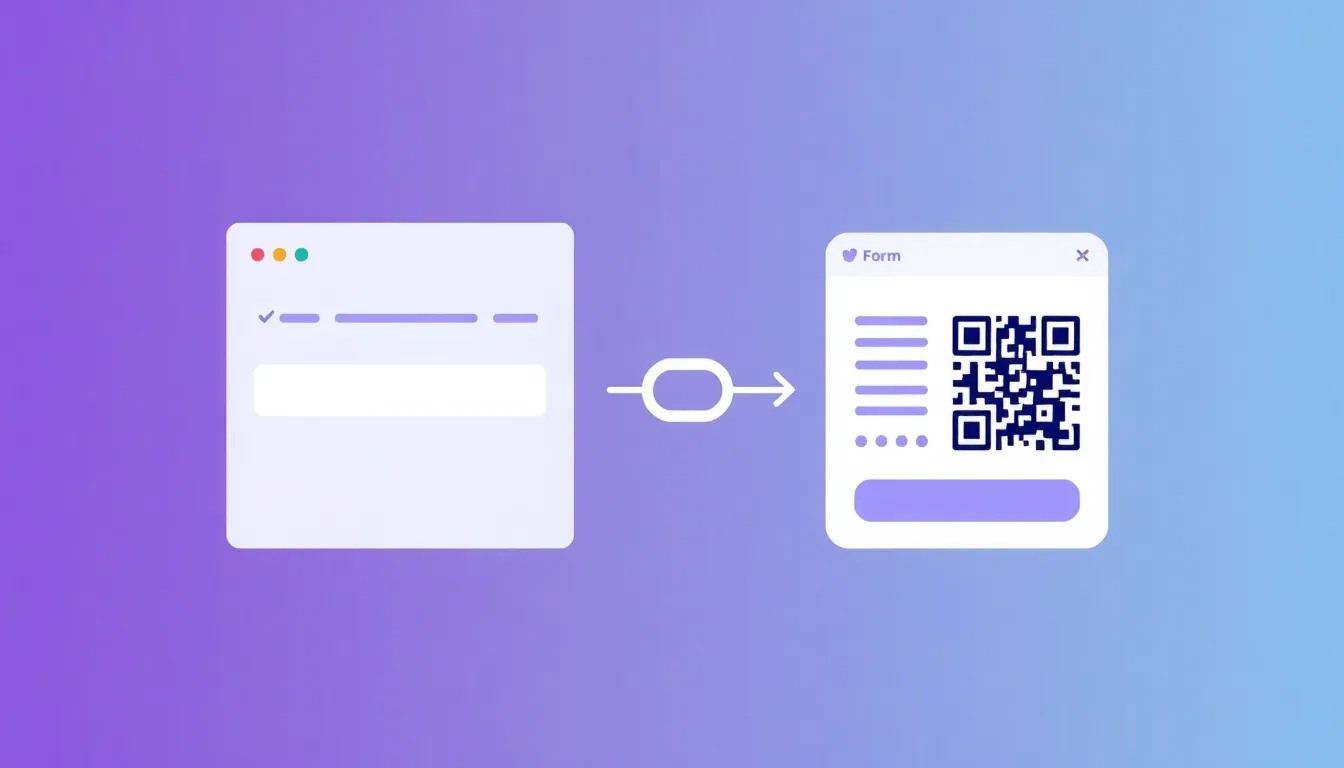
Sometimes the fastest way to collect responses is to share a form with a link. No embedding, no website edits, no code. You build the form, copy its URL, and send it anywhere people can click. This guide shows you how to share a form with a link using FormMaker, a 100% free online form builder, and where a shareable link works best.
When to Share a Form With a Link
Embedding a form on a page is great when you want it to live inside your website. But a link shines in plenty of other situations:
- Sending a form by email or newsletter
- Posting on social media or in a community
- Dropping into a chat message on Slack, WhatsApp, or SMS
- Adding a button or menu item on your site that points to the form
- Printing a QR code that opens the form on a phone
- Collecting responses when you do not have a website at all
Because a link is just a URL, it goes everywhere. That flexibility is why sharing a form with a link is often the quickest path to real submissions.
Step-by-Step: How to Share a Form With a Link
Step 1: Build Your Form
Open FormMaker and create your form in the drag-and-drop builder:
- Sign up for a free account and create a new form.
- Drag fields onto the canvas, such as name, email, and any questions you need.
- Click each field to set its label, placeholder, and whether it is required.
- Give the form a clear title, since the title represents your form when people open the link.
Keep it short and focused so people finish it.
Step 2: Customize the Experience
Because a shared link opens as a standalone hosted page, the details matter:
- Write a friendly form title and description so visitors know what they are filling out.
- Set your submit button text.
- Add a confirmation message that appears after someone submits.
- Optionally connect Google Sheets, Slack, or Zapier so responses route automatically.
Step 3: Publish the Form
Click publish. Publishing makes your form live and generates its shareable link. Until a form is published, the link will not be ready for others.
Step 4: Copy the Shareable Link
Open your published form and find the share option. Copy the standalone link that FormMaker provides. This URL points to a clean, hosted version of your form that anyone can open and complete.
Step 5: Share It Anywhere
Now paste the link wherever your audience is:
- Email: add it to a campaign or a personal message as a button or text link.
- Social media: post it directly or put it in your bio.
- Chat and messaging: drop it into Slack, WhatsApp, or SMS.
- Your website: link a button or navigation item to it.
- QR code: generate a QR code from the URL for print materials, events, or packaging.
Anyone who opens the link sees your form and can submit immediately.
Build your form free with FormMaker and share your link in minutes.
Making Your Shared Link Work Harder
A link on its own is fine. A link with a little context performs better:
- Add a reason to click. Tell people what they get by filling it out, like a response within 24 hours or early access.
- Shorten and brand where possible. A tidy URL looks more trustworthy in a post or email.
- Track performance. FormMaker's real-time analytics show how many people open and complete the form, so you can tell which channels drive responses.
- Use a multi-step form for longer surveys. The multi-step wizard splits questions into smaller screens, which keeps people moving through the form.
Link vs. Embed: Which Should You Use?
You do not have to choose permanently. Every FormMaker form supports both a shareable link and an embed snippet.
- Share a link when you are distributing off-site, moving fast, or do not want to edit a page.
- Embed the form when you want it to appear directly inside a page on your website.
Many teams start by sharing the link to collect responses immediately, then embed the same form on a page later. Both feed into the same response dashboard.
Frequently Asked Questions
Do I need a website to share a form with a link?
No. The shareable link is a standalone hosted page. You can collect responses through the link alone, even without a website of your own.
Can people fill out the form on their phone?
Yes. The hosted form page works on mobile, so a link shared by text, social, or QR code opens cleanly on a phone.
Where do the responses go?
Responses collect in your FormMaker dashboard with real-time analytics. You can also send them to Google Sheets, Slack, or thousands of apps through Zapier.
Is sharing a form link free?
Yes. FormMaker is 100% free with unlimited forms and responses, and the shareable link is included at no cost.
Wrapping Up
Sharing a form with a link is the quickest way to start collecting responses. Build your form in the drag-and-drop builder, publish it, copy the standalone link, and paste it into email, social, chat, or a QR code. There is no coding and no website required, and every response flows into your dashboard for free.
Get started with FormMaker for free and share your first form link today.
Build your first form free
Drag, drop, publish. No credit card, unlimited submissions.