How to Connect Your Forms to Google Sheets
August 24, 2026
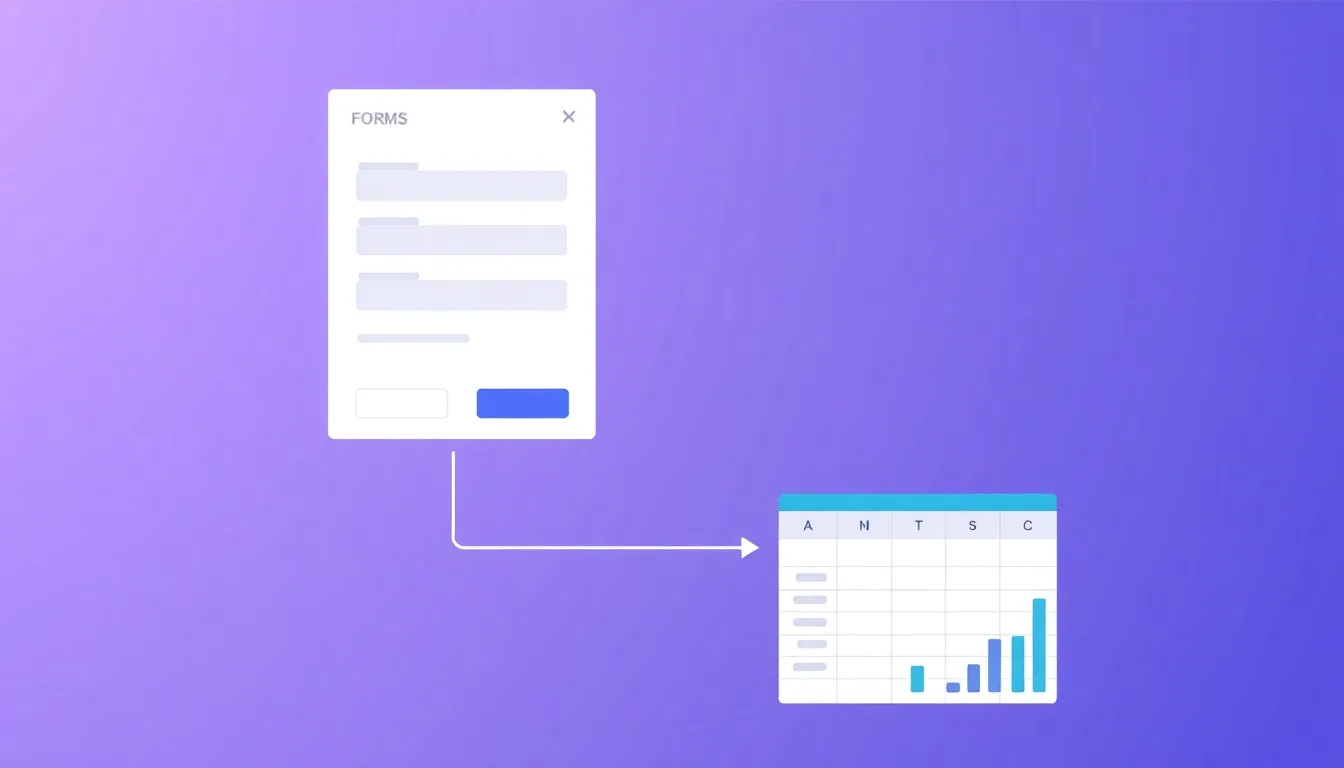
A spreadsheet is where most teams actually work with form data — sorting, filtering, sharing, and building charts. So one of the most useful things you can do is connect your forms to Google Sheets and have every submission land in a row automatically. No more copy-pasting or exporting CSVs by hand. This guide covers three ways to do it and how to choose between them.
Why send form responses to Google Sheets
- A live, shareable record. Everyone with access sees new responses the moment they arrive.
- Easy analysis. Use formulas, pivot tables, and filters on your data without exporting.
- A hub for automation. Sheets connects to countless other tools, so it's a natural staging point.
- Backup and history. You keep a running archive of every submission outside the form tool.
Method 1: Native Google Sheets integration (easiest)
The simplest route is a built-in integration. In FormMaker, open your form's integrations, choose Google Sheets, authorize access to your Google account, and pick (or create) the destination spreadsheet. Map each form field to a column, save, and you're done. From then on, every submission appends a new row automatically, in real time.
This method is best for most people because there's no code and nothing to maintain. Steps at a glance:
- Build and publish your form.
- Open Integrations → Google Sheets.
- Authorize your Google account.
- Select or create the spreadsheet and worksheet.
- Map fields to columns and save.
Method 2: Zapier (for extra logic)
If you want to do more than just append rows — say, add a row and notify your team and only for certain responses — Zapier is a good fit. Create a Zap with your form as the trigger ("New submission") and Google Sheets → Create Spreadsheet Row as the action. Zapier lets you insert filters, formatting steps, and multiple actions in the same workflow.
Use Zapier when you need conditional routing, data transformation, or a chain of actions beyond a straight copy into Sheets.
Method 3: Webhooks + Apps Script (for developers)
For full control, use webhooks. Point your form's webhook at a Google Apps Script web app that receives the submission and writes it to your sheet. A minimal Apps Script handler looks like this:
function doPost(e) {
  const sheet = SpreadsheetApp.getActiveSpreadsheet().getSheetByName('Responses');
  const data = JSON.parse(e.postData.contents);
  sheet.appendRow([new Date(), data.name, data.email, data.message]);
  return ContentService.createTextOutput('ok');
}
Deploy the script as a web app, copy its URL, and paste it into your form's webhook settings. Each submission sends a JSON payload your script writes to the sheet. This approach is the most flexible but requires maintaining a bit of code. (Field names in the payload depend on your form; check your webhook's sample payload for exact keys.)
Which method should you use?
- Just want responses in a sheet? Use the native integration.
- Need filters, multiple actions, or other apps in the flow? Use Zapier.
- Want custom logic and control, and comfortable with a little code? Use webhooks and Apps Script.
Frequently asked questions
Will old responses appear in the sheet? Integrations typically sync submissions from the moment you connect them onward. To include earlier responses, export them from your form and paste them in once.
Can I send responses to multiple sheets or tools? Yes. Use Zapier to fan a single submission out to Sheets plus email, Slack, or a CRM at the same time.
Do I need to code? No. The native integration and Zapier are both no-code. Webhooks with Apps Script are only for when you want custom control.
Is connecting forms to Google Sheets free? FormMaker is free with unlimited forms and responses. A native integration keeps the whole flow no-cost; Zapier's free tier covers light usage.
Connect your form to Sheets
Pick the method that matches how much control you need and get every submission flowing into a spreadsheet automatically. Start automating your forms free with FormMaker — connect Google Sheets, then embed your form or share its link.
Build your first form free
Drag, drop, publish. No credit card, unlimited submissions.